



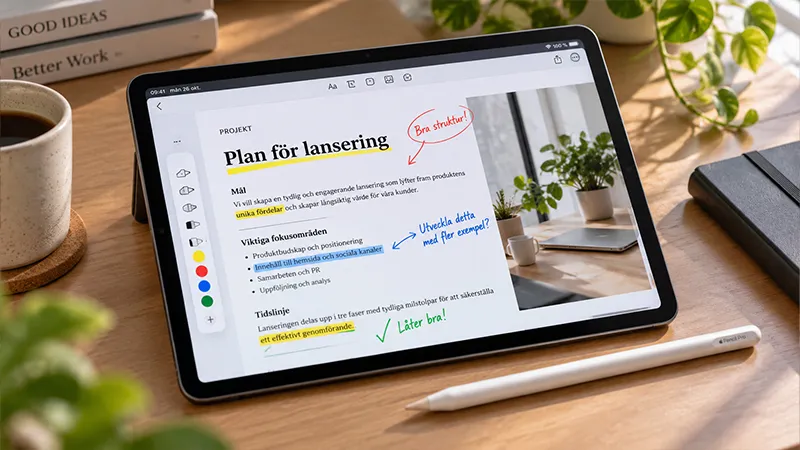
Reading, commenting on, and reviewing documents doesn’t have to require a computer or a printer. With an iPad and Apple Pencil, you can work directly in PDF files, highlight important sections, add comments, and share your changes with others. It works just as well for studying as it does for work and creative projects.
With the right apps and a few simple tricks, your iPad can become a smooth tool for document management. Here, we walk through how to get started, which features are worth knowing about, and how a screen protector from Paperlike can make writing and taking notes on the screen more comfortable.
Get started with PDF files on iPad
You don’t need to install advanced software to start working with PDF files. Apple’s built-in Files and Preview apps, together with the system’s markup tools, give you the ability to open documents and add notes directly on the screen. Which features are available depends on your version of iPadOS.
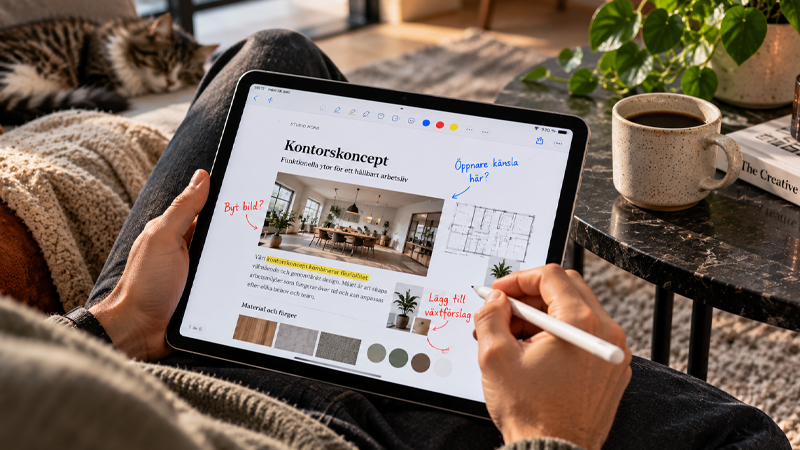
Start by opening a PDF file and looking for the pen icon for Markup. There, you can choose between different pens, colors, and tools for writing, drawing, and highlighting content. With Apple Pencil, it’s easy to circle a phrase, underline an important sentence, or write a short comment in the margin.
Highlight text and leave clear feedback
When you review a document, it’s often the details that need attention. Maybe a colleague needs to change a phrasing, a student needs feedback on an assignment, or a design proposal needs adjusting. By marking directly in the document, it becomes clearer which part of the content the comment refers to.
A good trick is to use different colors for different types of feedback. Red can, for example, mark things that need changing, blue can be used for questions, and green for approved parts. Keep your comments short and concrete so the recipient quickly understands what needs to be done.
Make handwritten notes feel more natural
One of the advantages of Apple Pencil is the ability to write by hand without first having to turn your thoughts into keyboard text. You can make quick sketches, add arrows, and clarify connections directly in the document. It’s especially useful when you work with presentations, drawings, or material where the visual structure matters.
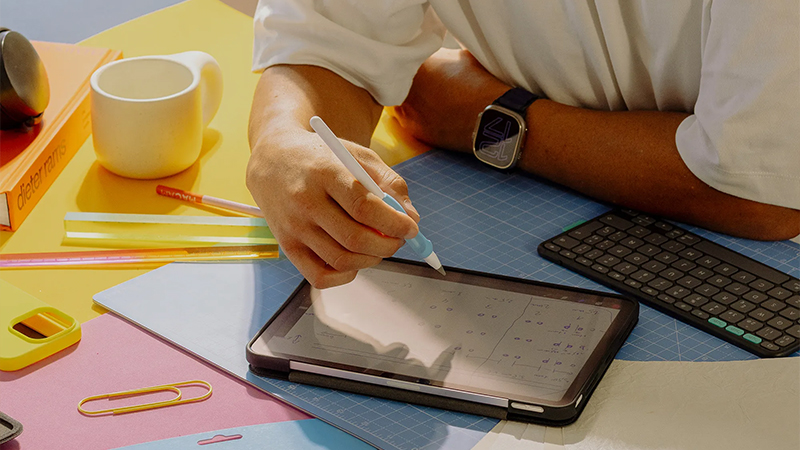
For those who take a lot of notes, the feel against the screen can also matter. Paperlike’s screen protector has a special surface texture that gives more paper-like resistance as the pen tip moves across the glass. It can make handwritten comments and longer note-taking sessions more comfortable, while also protecting the screen from everyday wear.
Share documents and collaborate more smoothly
When the review is finished, you can share the commented PDF file via, for example, Mail, Messages, or a cloud service. First, check that the notes have been saved and are included in the version you send. This is especially important if the recipient uses a different app or device.
A simple workflow is to save the original file separately and create a copy for each review round. That way, you can always go back to the original version and compare the changes. Feel free to use clear file names with dates or version numbers to avoid mixing up different drafts.
Create a workflow that works
The great thing about reviewing PDF files on iPad is the flexibility. You can read through a document on the train, comment on a presentation during a meeting, or correct an assignment at home on the sofa. With Apple Pencil close at hand, it’s easy to switch between reading and notes.
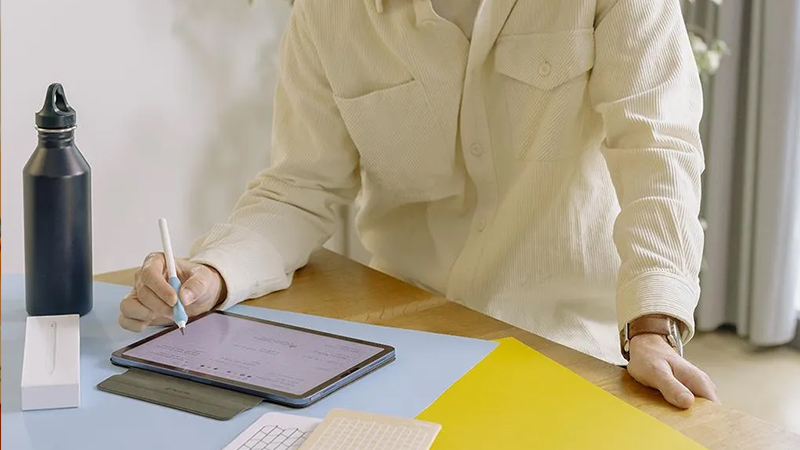
It’s a good idea to start with the built-in tools before exploring more advanced PDF apps. For many people, they’re enough. Combine them with a well-thought-out file structure and a writing surface that feels good, and you get a workflow that is both simple and efficient.
FAQ
Can I write directly in a PDF file with Apple Pencil?
Yes, with Apple’s markup tools, you can handwrite, draw, and highlight directly in many PDF documents. Open the file in a compatible app and choose the pen tool. You can then save your notes together with the document and share the result with others.
Do I need a special app to comment on PDF files?
No, iPad has built-in tools that work well for simpler notes and highlights. However, if you need advanced text handling, extensive commenting features, or specific collaboration tools, a dedicated PDF app can be a good complement to Apple’s own solutions.
Can I change the existing text in a PDF?
It depends on which app you use and how the document was created. Apple’s markup tools are primarily intended for notes and comments, not for rewriting existing paragraphs. For more extensive editing, you may need a specialized PDF editor.
What is the advantage of a Paperlike screen protector when I take notes?
Paperlike’s screen protector has a textured surface that gives the pen tip a different kind of resistance than ordinary screen glass. It creates a more paper-like writing feel that many people appreciate for handwritten notes, sketches, and document review. The experience is individual and also depends on which Apple Pencil you use.
How do I send a commented PDF to someone else?
First save the document with your changes, then use the sharing function in the app. You can, for example, send the file by email or save it in a shared folder. Feel free to open the exported PDF once more to check that all comments appear as they should.