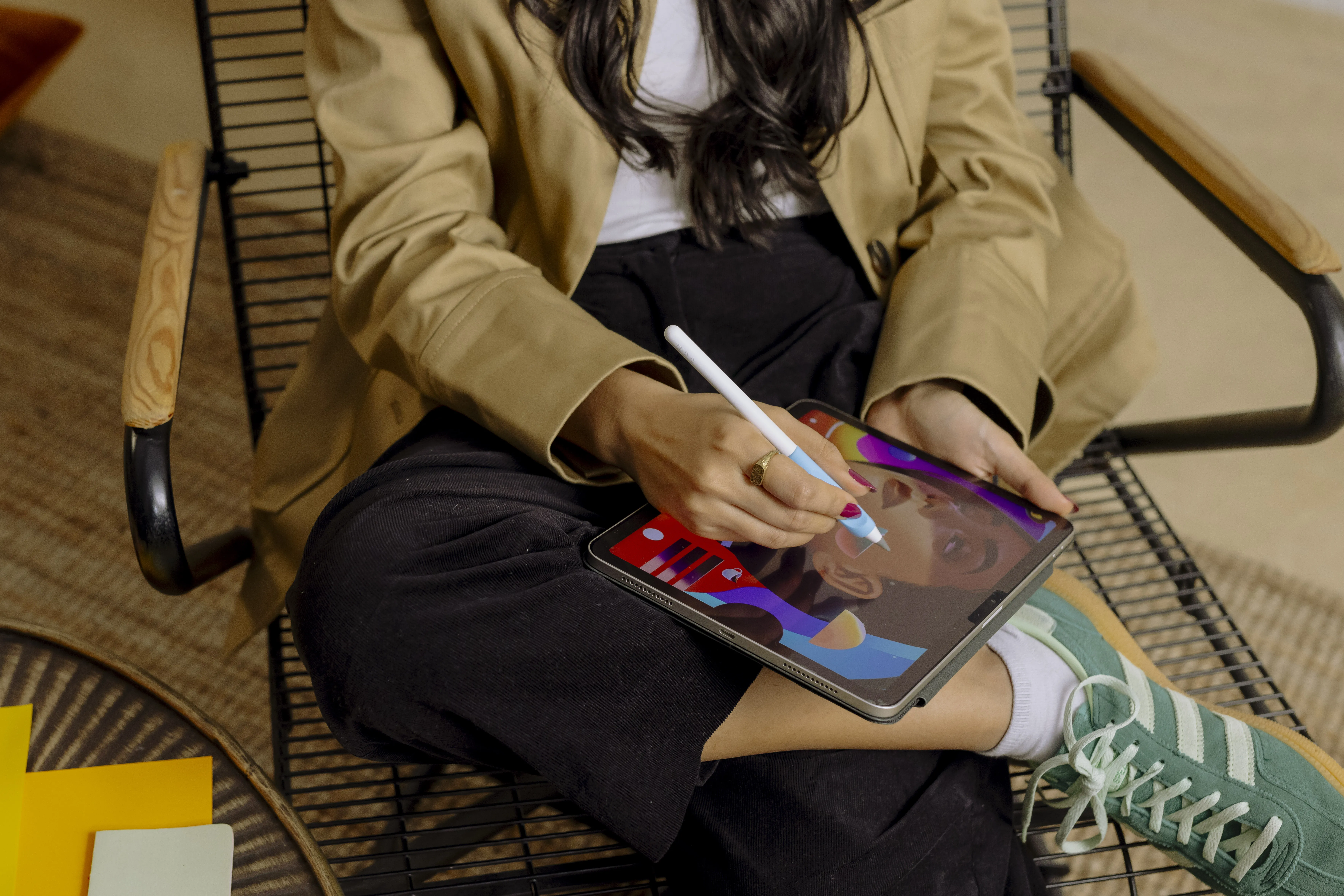



Mac and iPad are two fairly different kinds of devices, but it is actually when they are used together that many of Apple’s smartest features really shine. You can move work between screens, use the same mouse and keyboard, and even turn your iPad into an extra display.
Apple groups much of this under the name Continuity. The idea is simple: you should not have to think much about which device you are using. Start typing on your iPad, keep going on your Mac, or pick up Apple Pencil when it is time to note something in a document. Here are seven features that make the combination much more useful.
1. Pick up where you left off with Handoff
You might start replying to an email on your iPad on the sofa and realize halfway through that a proper keyboard would be much nicer. With Handoff, you can continue the same task on your Mac without first saving, sending, or searching for the content again.
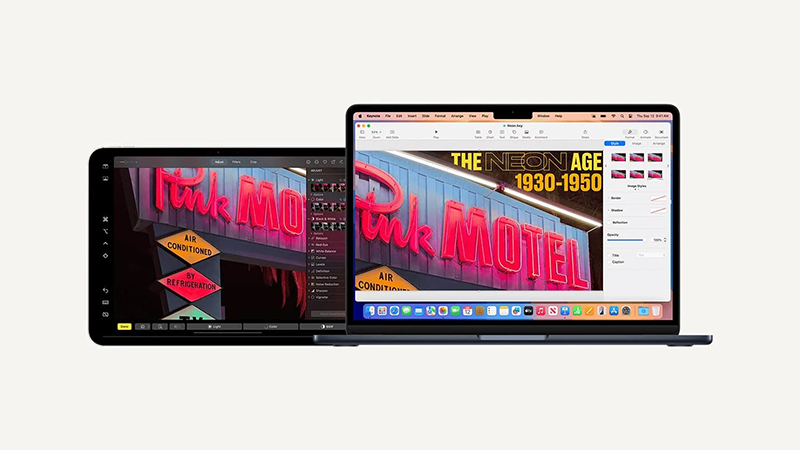
The feature works with Safari, Mail, Pages, Maps, and several third-party apps, among others. On Mac, the app from your iPad appears in the Dock when there is something to continue. To use Handoff, both devices need to be signed in to the same Apple account and have Wi-Fi and Bluetooth turned on. (Apple Support)
2. Control both with the same mouse and keyboard
Universal Control is one of those features that almost feels a little odd the first time you try it. Place your iPad next to your Mac and move the pointer toward the edge of the Mac screen. Go a little farther, and the pointer simply moves over to your iPad.
Your iPad keeps running iPadOS and its usual apps, but you can control it with the same mouse, trackpad, and keyboard as your Mac. You can also drag content between the devices. The feature supports one Mac together with up to two other compatible Mac or iPad devices. (Apple Support)
3. Copy on iPad, paste on Mac
Universal Clipboard may not be as dramatic, but it is probably something you will use more often. Copy a link, image, or text on your iPad and press Command + V on your Mac. The content is pasted just as if you had copied it on the computer.
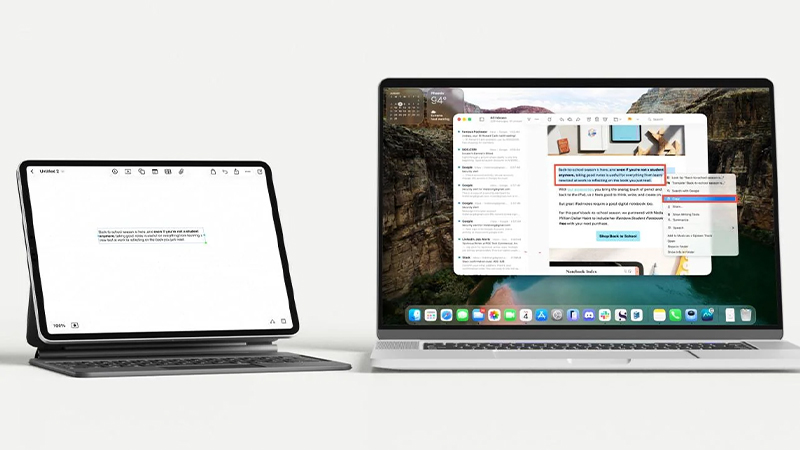
It is perfect when you find a web page on your iPad that you want to use on your computer, or when you want to move an image quickly without first saving and sending it. The feature is based on Handoff and does not require a separate app or service. (Apple Support)
4. Transfer larger files with AirDrop
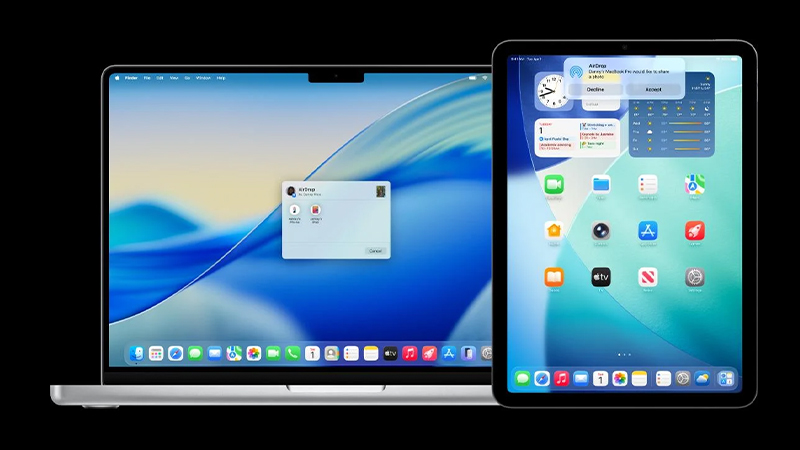
When it comes to larger files, AirDrop is still hard to beat. Photos, video clips, documents, and more can be sent directly between Mac and iPad without first uploading them to a cloud service.
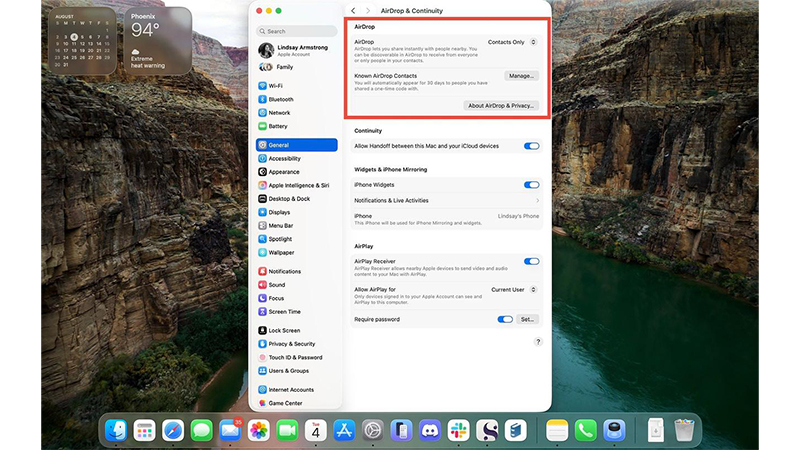
If AirDrop cannot find the other device, it is worth checking that both Wi-Fi and Bluetooth are on and that the receiving settings allow the right people. For anyone working with photos or video on an iPad, for example, AirDrop is a very easy way to get the material over to a Mac quickly. (Apple Support)
5. Turn your iPad into an extra display
With Sidecar, your iPad can instead become a proper second display for your Mac. It is useful at your desk, but perhaps even better when you are in a hotel, on a train, or somewhere else where your usual external display did not come along.
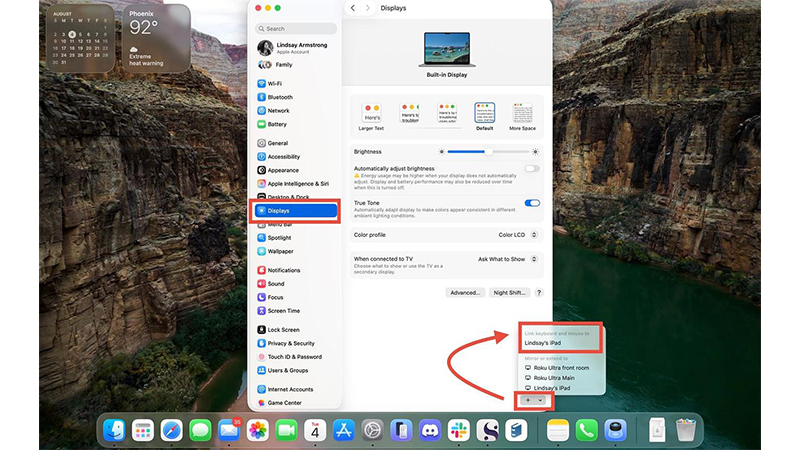
You can drag Mac windows over to the iPad screen and use it as an extension of your desktop. Sidecar also supports Apple Pencil, letting you draw and mark up compatible Mac apps directly from your iPad. A screen protector like Paperlike can at the same time give the pencil more resistance than standard glass. (Apple Support)
6. Scan documents straight to your Mac
If you need to get a receipt, a note, or a signed paper onto your computer, you do not have to start taking photos, save the image, and send it to yourself. With Continuity Camera, your iPad can act as a camera or document scanner for your Mac.
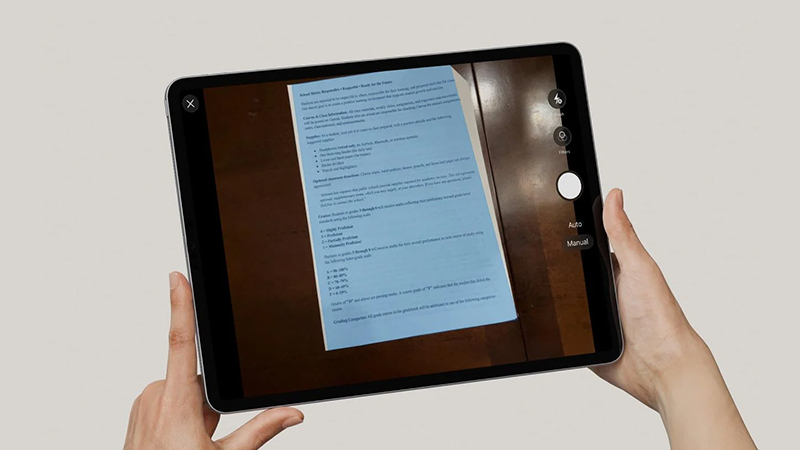
In compatible Mac apps, you can choose to insert a scan from your iPad. The camera then opens on the tablet, and the finished document lands directly on your Mac. It is a small feature that is surprisingly practical once you start using it. (Apple Support)
7. Mark up Mac files with Apple Pencil
Continuity Markup is especially useful if you often work with PDF files or images. Open the markup of a file on your Mac and choose your iPad. The document then appears on the tablet so you can write, draw, or mark it up with Apple Pencil.
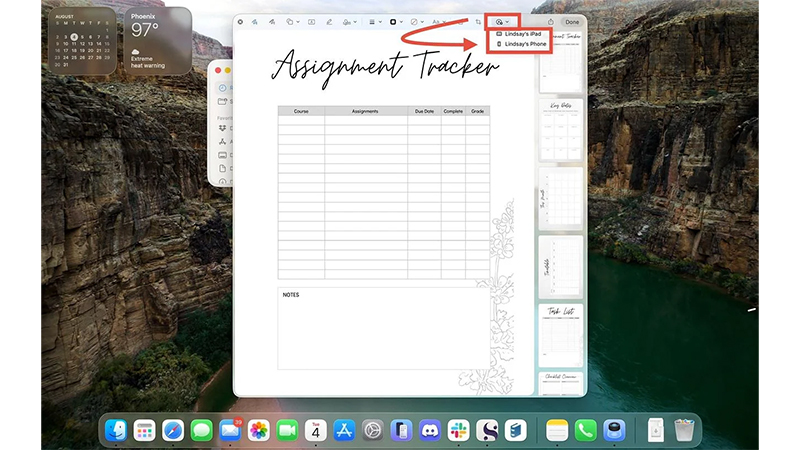
The changes appear on your Mac at the same time. It works well for everything from signing a document to circling something in a screenshot or giving feedback on a PDF. Unlike Sidecar, you do not need to use the iPad as a full extra display; you simply send over what you want to work on. (Apple Support)
Mac and iPad are better together
None of these features has to change the way you use your devices completely. The real benefit is all the small moments when a step disappears. You do not have to email a file to yourself, find the same web page again, or pack an extra display.
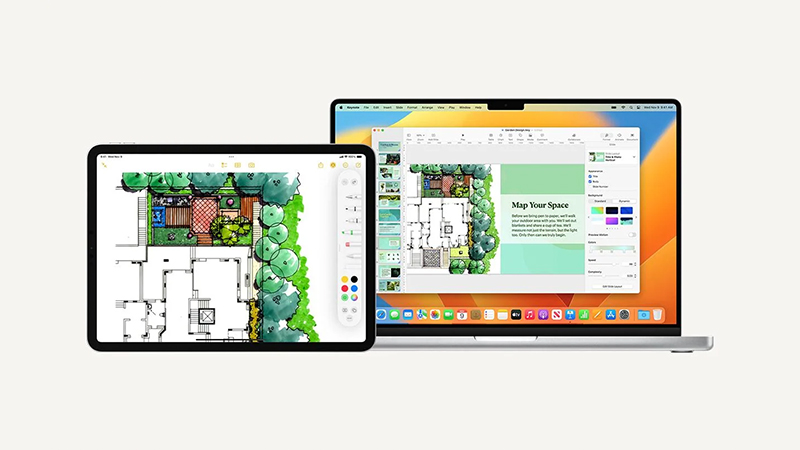
If you already have both a Mac and an iPad, much of this is ready to use right away. Sign in with the same Apple account, make sure Wi-Fi, Bluetooth, and Handoff are on, and start testing. When Continuity works as intended, you almost do not notice the features are there, which is really part of the point. (Apple Support)
FAQ
What do you need to use Mac and iPad together?
For most Continuity features, both devices need to be signed in to the same Apple account and have Wi-Fi and Bluetooth turned on. Exact system requirements vary by feature. Newer features such as Universal Control, for example, require macOS Monterey 12.4 and iPadOS 15.4 or later. (Apple Support)
What is the difference between Sidecar and Universal Control?
Sidecar turns your iPad into an extra display for Mac and therefore shows content from macOS. Universal Control instead lets the iPad keep running its own iPad apps, while you control both Mac and iPad with the same keyboard, mouse, or trackpad. (Apple Support)
Can I use Apple Pencil with my Mac?
Not directly on the Mac screen, but the iPad can act as an input device through Sidecar. You can also use Apple Pencil with Continuity Markup to note, draw, or sign PDF files and images stored on your Mac. (Apple Support)
Do Mac and iPad need to be connected by cable?
No. Most Continuity features are designed to work wirelessly when the devices are near each other. Sidecar can also be used with a cable, which can be practical during longer work sessions because your iPad can be charged at the same time. (Apple Support)
Does Continuity only work with Apple’s own apps?
No. Several features also work with third-party apps, but support varies. Handoff and Continuity Markup are examples where the developer can build in support. Apple’s own apps are therefore a good starting point when you try the features for the first time. (Apple Support)
Images and screenshots are from Dennis Klarin, Lindsay Armstrong/Paperlike, and Apple