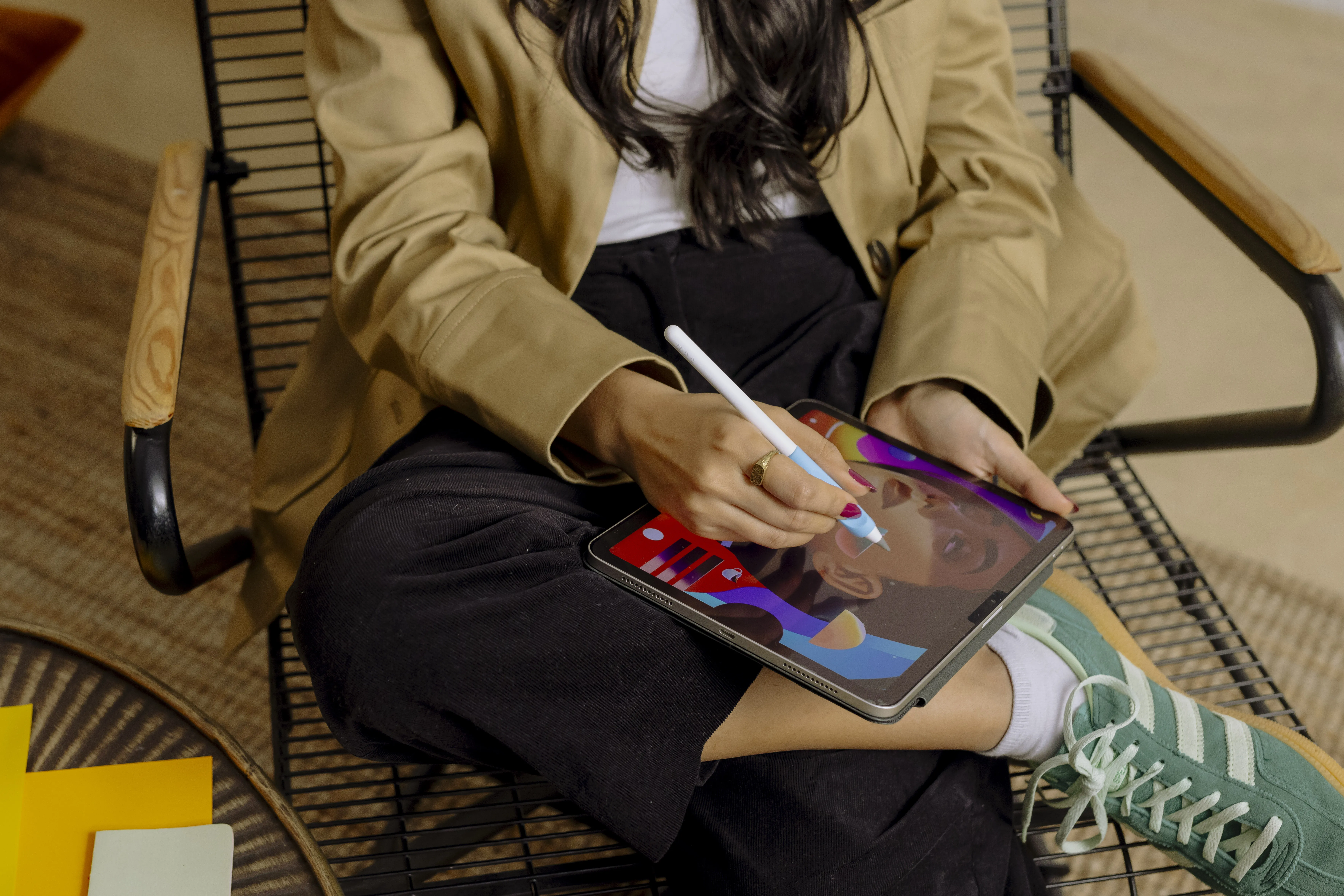



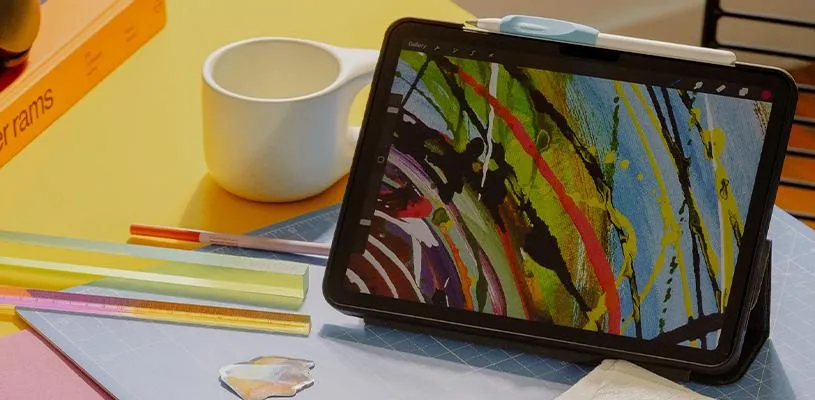
You don’t need to be an artist to start drawing on your iPad. In fact, a few minutes, an Apple Pencil and a little curiosity are enough to get started. The beauty of digital drawing is that you can experiment as much as you like without using paper or having to erase anything by hand.
With the right exercises, you can quickly become more comfortable with the pencil and discover how fun it is to create digitally. Here we’ve gathered five simple exercises to help you practice precision, shapes, shading and color. You can use them in Procreate, Sketchbook or any other drawing app that works with Apple Pencil.
1. Start with lines and simple shapes
The first exercise is not about creating something beautiful, but about getting to know the pencil. Open a blank canvas and start drawing straight lines, waves and circles. Try drawing slowly and quickly, then repeat the same shape several times.
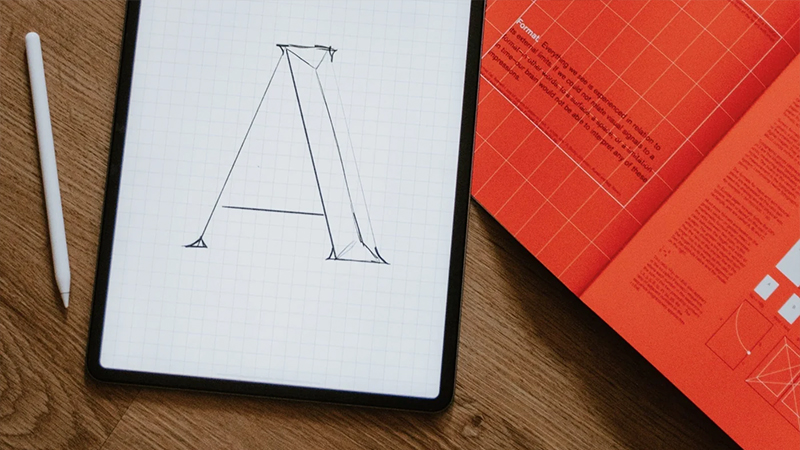
Once you feel comfortable, you can combine the shapes into simple objects. A circle can become a sun, a square can become a house, and a few curved lines can become a flower. The goal is to practice hand movement and get used to how the tip glides across the screen.
2. Draw something in front of you
Now it’s time to leave abstract shapes behind and try to capture something from real life. Choose a simple object, such as a coffee cup, an apple or a small plant. Place it in front of you and try drawing its outline without getting stuck on the details.
Feel free to start with large shapes and then work your way toward smaller details. For example, a coffee cup can be broken down into a cylinder and a curved handle. By simplifying objects, it becomes easier to understand their proportions. And remember, the drawing doesn’t have to be perfect.
3. Learn to create depth with shadows
Shading is a simple way to make a flat drawing feel more three-dimensional. Draw a circle and imagine the light coming from the upper-left corner. Make the opposite side darker and let the transition between light and dark become gradually softer.
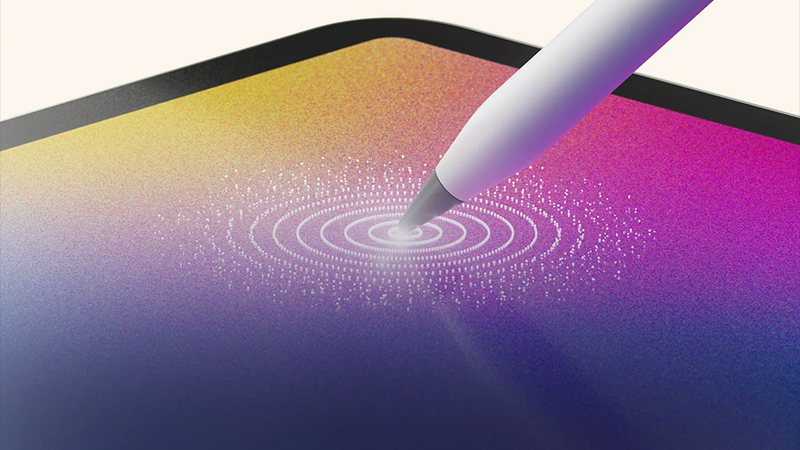
Feel free to try different brushes and opacity levels in your drawing app. You can also work with multiple layers to experiment without ruining the base shape. If you use an Apple Pencil with pressure sensitivity, you can try how different levels of pressure affect brush strokes in apps that support the feature.
4. Create an illustration with just three colors
It’s easy to get lost in all the colors available in a digital drawing app. That’s why it can be useful to limit yourself. Choose three colors that you think work well together, and use only those to create a simple illustration.
For example, draw a landscape with a sky, hills and a tree, or create a small poster with geometric shapes. By limiting your color palette, you get to practice contrast and composition. You’ll also notice how much variation you can create with relatively few colors.
5. Draw the same subject three different ways
The final exercise is more about creativity than technique. Choose a subject, such as a cat, a flower or a house. First draw it as realistically as you can, then as a simple cartoon figure, and finally with just a few lines.
When you compare the three images, you can see how much the expression changes even though the subject stays the same. This exercise is also a good way to discover which style you like best. Maybe you prefer detailed illustrations, or maybe you find that simple line drawings suit you better.
Make drawing a habit
You don’t need to spend hours every day getting better. Ten minutes with Apple Pencil can be enough to try a new technique or develop an old idea. Be sure to save your drawings so you can compare them after a few weeks and see how your style changes.

For those who draw a lot, the feel against the screen can also matter. Paperlike screen protectors have a textured surface that gives the pencil tip more resistance than smooth glass. It creates a more paper-like feel that can be especially helpful when you sketch, write and work on detailed illustrations.
FAQ
Which app is best for starting to draw on iPad?
There are several good options, including Sketchbook and Procreate. Sketchbook offers tools to help you get started with simple sketches, while Procreate has a large range of brushes and features. It’s a good idea to choose an app with an interface that feels easy to understand and start with just a few tools.
Do I need to know how to draw to use Apple Pencil?
No, Apple Pencil is just as suitable for beginners as it is for experienced illustrators. Start with simple lines and shapes, then build your skills at your own pace. The most important thing is to dare to experiment and not compare your first drawings with professional illustrations.
Can I use all Apple Pencil models to draw?
Yes, compatible Apple Pencil models work for drawing, but the features differ. For example, Apple Pencil with USB-C lacks pressure sensitivity, which affects some brush functions. Also check which Apple Pencil is compatible with your iPad.
Does Paperlike make drawing easier?
Paperlike screen protectors create a different amount of resistance between the pencil tip and the screen compared with regular glass. That can provide a more controlled, paper-like writing feel. How much difference you notice depends on your personal preferences and the type of drawing you’re working on.
How long does it take to get better at digital drawing?
It varies depending on how often you practice and which skills you want to develop. Regular short exercises are a good way to build precision and confidence. Save your first drawings and compare them with new images after a few weeks to see your progress.