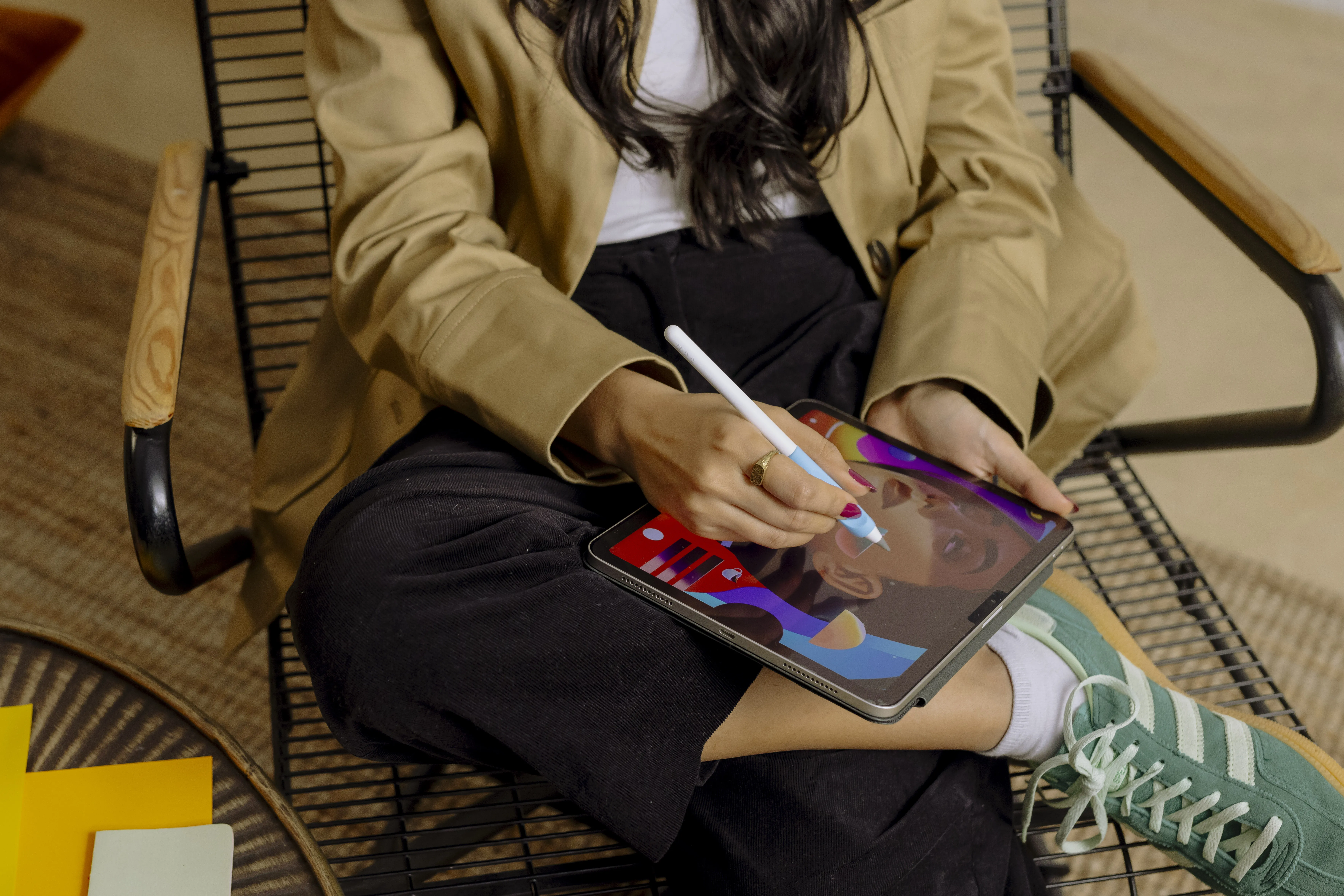



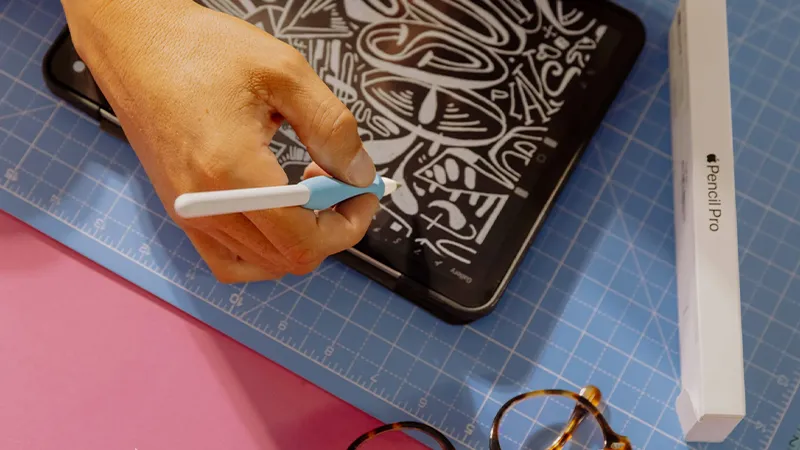
Apple Pencil is often associated with two things: notes and drawing. But when the workday is over, the pencil doesn’t actually have to be put away with the notebook.
The App Store contains plenty of apps that use Apple Pencil in much more playful ways. You can color, rearrange your home, practice calligraphy, or just scribble up a photo. Apple itself highlights apps for coloring, image editing, interior design, and creative work among the apps that suit Apple Pencil. Here are seven things to try when you want to use the pencil for something completely different from work.
1. Color without buying a single pencil
Digital coloring books are almost ridiculously well suited to Apple Pencil. Apps like Lake let you color detailed illustrations directly on iPad, without the box of 48 pencils where the exact green you need is always missing. Lake is also one of the apps Apple highlights for creative use on iPad.
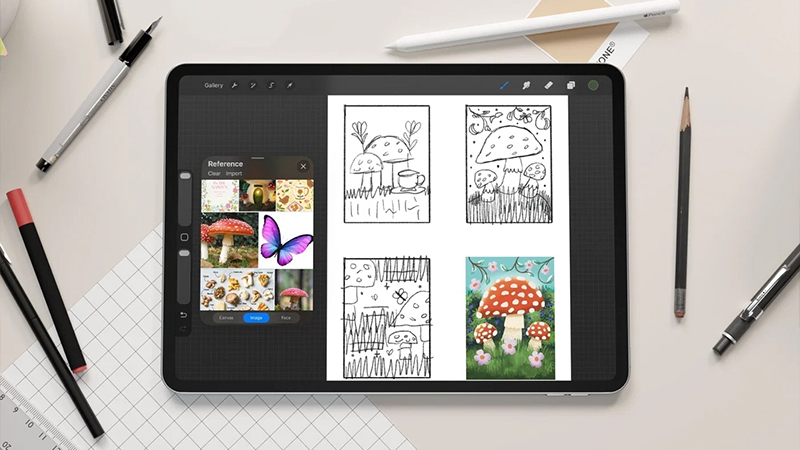
The great thing is that you don’t need any talent to get started. It’s more relaxation than art project, and you can experiment with colors, brushes, and styles without being able to ruin the original.
2. Rearrange before you start moving the sofa
Have you ever moved an entire room around only to decide it looked better to begin with? With apps like Planner 5D, you can start planning on iPad instead. Apple lists Planner 5D among the apps that work with Apple Pencil.
You can use the pencil when working with floor plans and ideas, and get a much clearer picture of what you want to do before the furniture starts flying around. Especially handy when two people have very different views on where the sofa should go.
3. Learn to write neatly again
Apple Pencil can also be the excuse you need to improve your handwriting. Apps like Tayasui Calligraphy are made for practicing calligraphy and handwriting directly on the screen. The app is available in Apple’s Swedish App Store and is explicitly focused on calligraphy and handwriting.
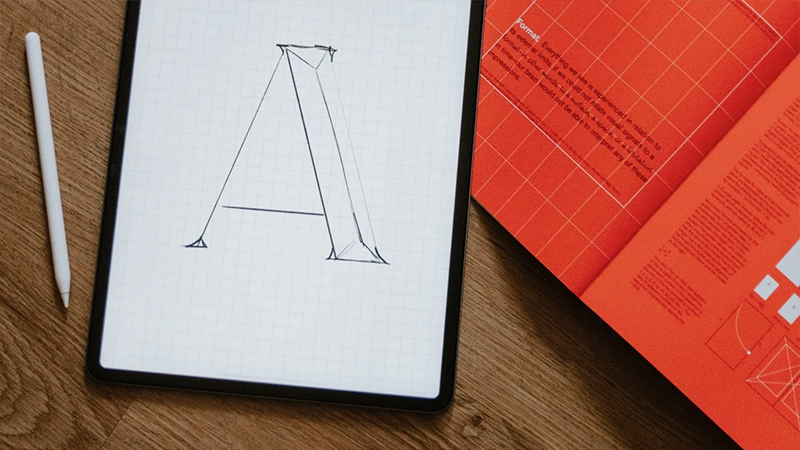
It’s also much less messy than real calligraphy. You can try different styles, redo the same letter fifty times, and undo the fifty-first without using up half a pad of paper.
4. Do something fun with your photos
A regular photo doesn’t have to stay a regular photo. With Apple Pencil, you can draw directly on images, add handwritten text, highlights, and small illustrations, or take image editing much further.
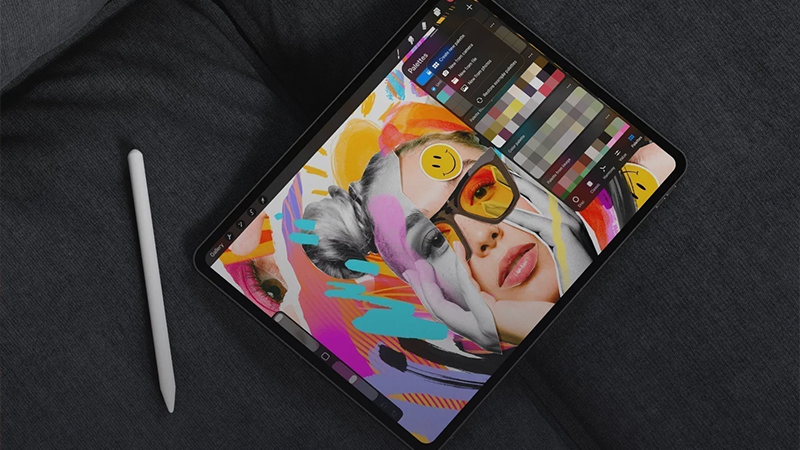
Apple recommends Photoshop, Lightroom, Photomator, and Canva among the apps adapted for Apple Pencil. So it doesn’t have to be about professional retouching. Draw a mustache on your friend if that’s where your ambition level is.
5. Create your own cards and invitations
A handwritten birthday card feels personal, but a digital one doesn’t have to feel any less personal. With Apple Pencil, you can combine your own handwriting, small illustrations, and photos, then send the result digitally or print it out.
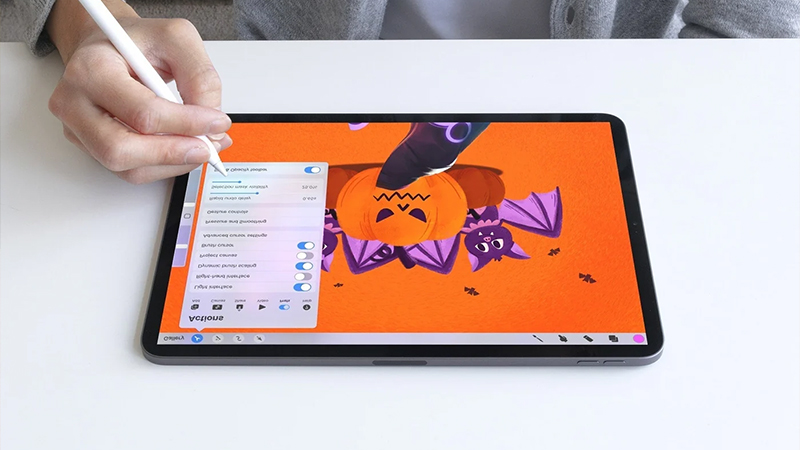
Canva, for example, or one of the many drawing apps on iPad, works well here. The advantage is that you get the feel of something handmade while still being able to undo that one letter that ended up strangely three times larger than the rest.
6. Try digital pottery
Yes, really. The App Store also includes apps like Let’s Create! Pottery 2, where you shape and decorate virtual ceramics. Apple highlights the app among creative iPad apps.
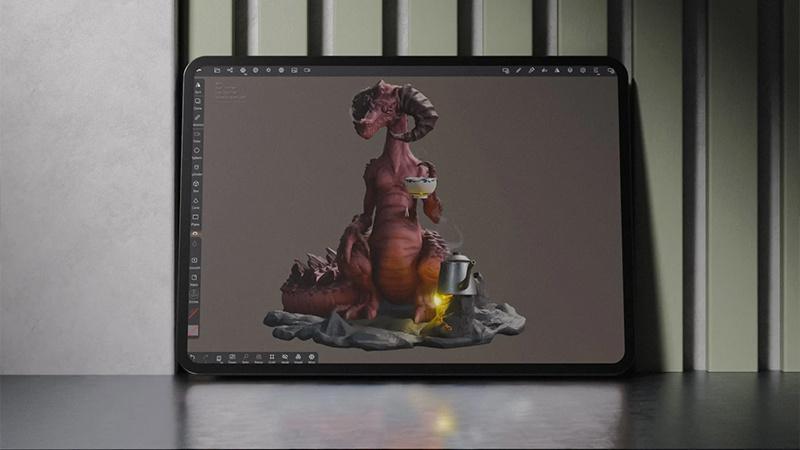
It may not be the reason anyone buys an Apple Pencil, but these small use cases are exactly what make the pencil more enjoyable to own. And above all, you avoid getting clay all over the kitchen table.
7. Start drawing even if you can’t draw
Finally, we come back to drawing, but not necessarily with the ambition of creating art. Sketchbook, Procreate, and Sketchar are some of the apps Apple highlights for creative work on iPad. Sketchar also focuses on helping users learn to draw.
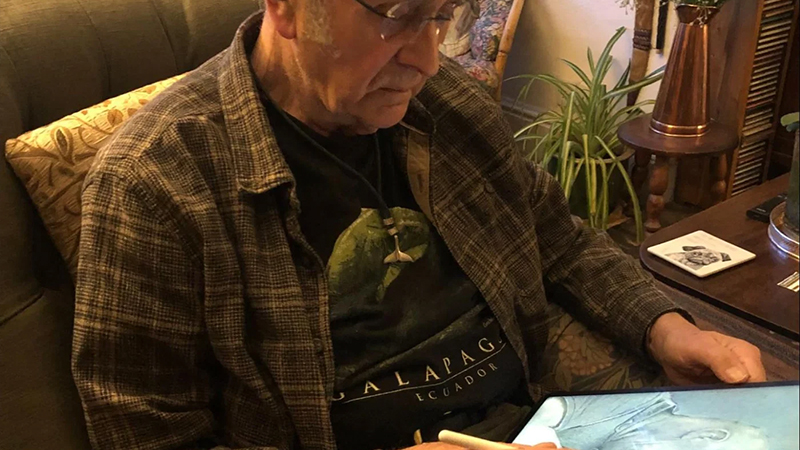
Apple Pencil can simply be a way to start doodling again. Make a little comic, draw your cat, create the world’s worst portrait of a colleague, or see whether you actually get better after a few weeks. Not everything has to be productive to be worth doing.
FAQ
Do you need to be able to draw to get value from Apple Pencil?
Absolutely not. Coloring, calligraphy, image editing, interior planning, and various creative apps all use the pencil without requiring any major artistic skills.
Which apps are good for coloring on iPad?
Lake and Colorfy are two examples Apple highlights among apps that support creative use of Apple Pencil. There are also many other digital coloring books in the App Store.
Can Apple Pencil be used for image editing?
Yes. Apps like Adobe Photoshop, Lightroom, and Photomator are available for iPad, and Apple highlights them among apps that can benefit from Apple Pencil.
Can I learn calligraphy on iPad?
Yes. There are dedicated apps for digital calligraphy, including Tayasui Calligraphy. The combination of iPad and Apple Pencil lets you practice without paper, ink, or special calligraphy pens.
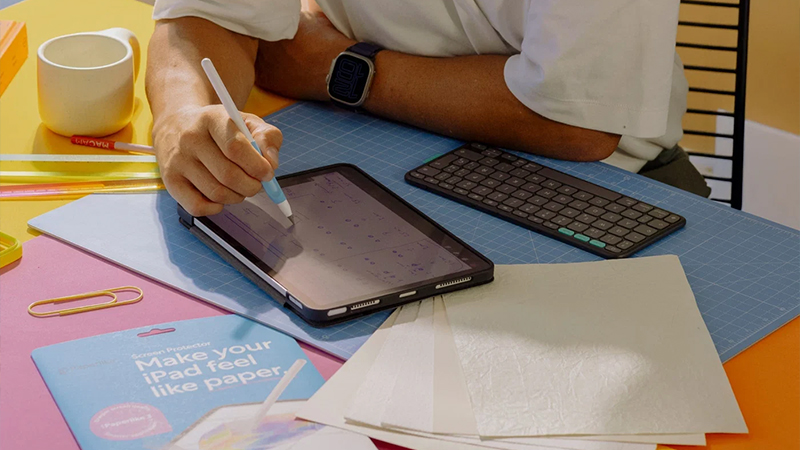
Does Apple Pencil feel different with Paperlike?
Paperlike is a screen protector designed to create more friction between the pen tip and the screen compared with glossy glass, which can give a more paper-like feel when you write and draw.