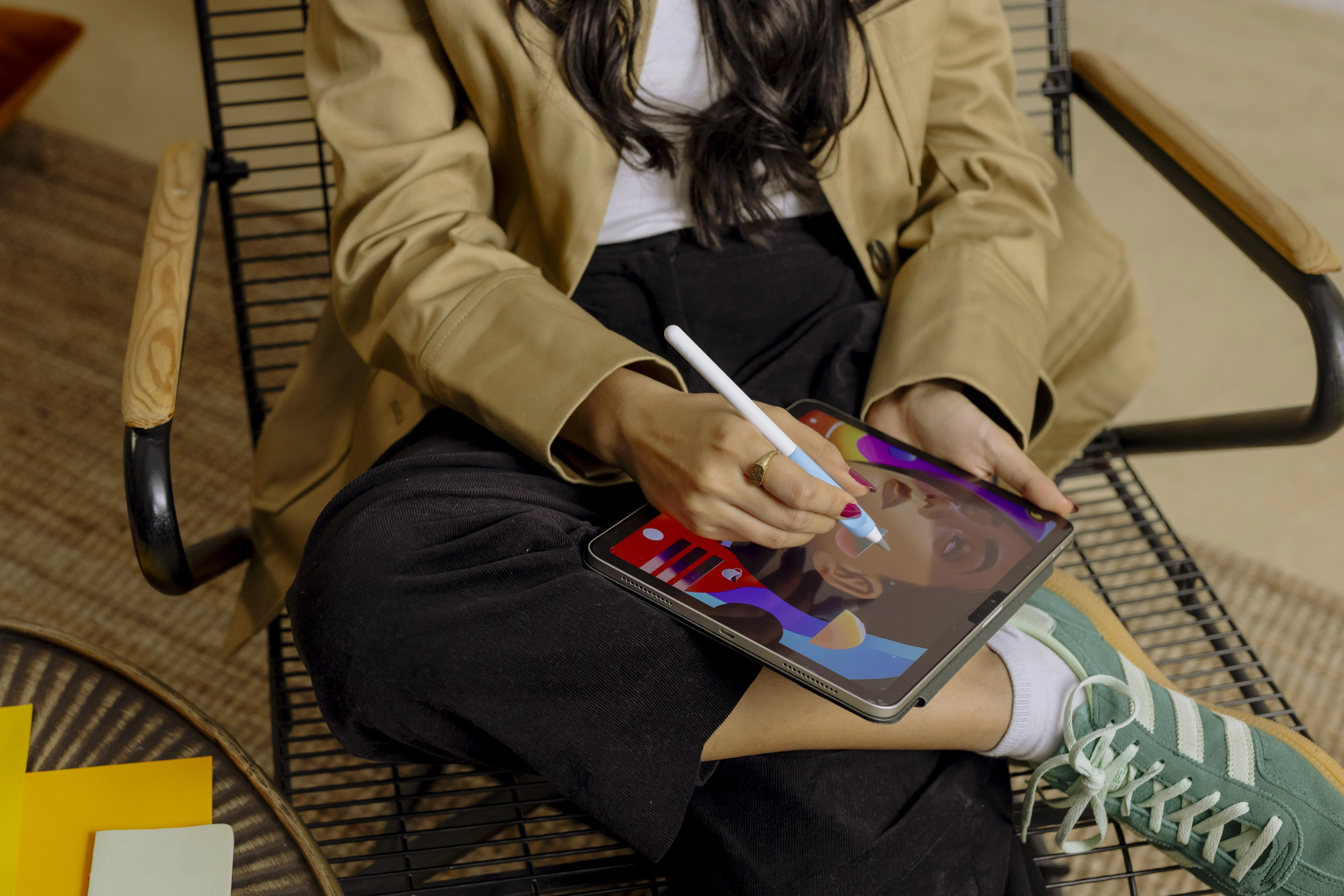



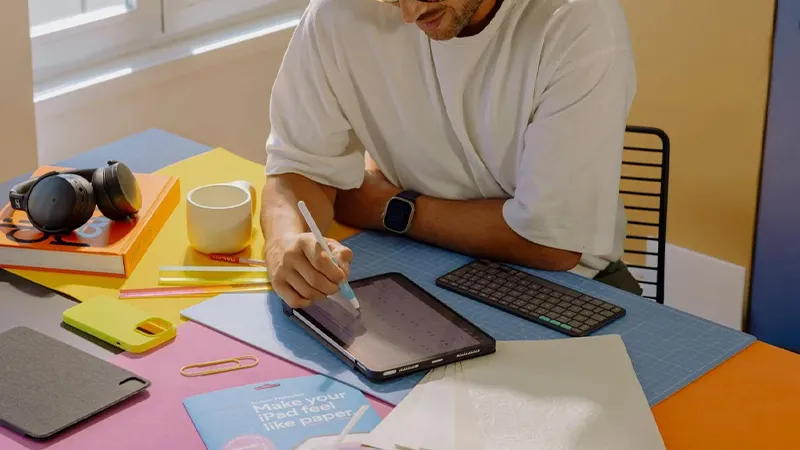
It’s easy to start taking notes on an iPad. You open an app, pick up your Apple Pencil, and start writing. But after a few weeks, it can be harder to find your way back through everything you’ve saved. Meeting notes get mixed with shopping lists, ideas, and documents, while important things disappear among old pages. Just like with regular notebooks, a little structure is needed to keep things in order.
The advantage of digital notes is that you can move, sort, and search them without having to rewrite anything. With a few simple habits, your iPad can become a much better tool for both work and study. And if you use Apple Pencil together with a screen protector from Paperlike, you also get a writing surface that feels more like paper.
Start with a simple folder structure
The first step is to decide where your notes should go. Instead of creating a new note every time and letting everything pile up in one place, you can divide the content by work, studies, and personal projects, for example.
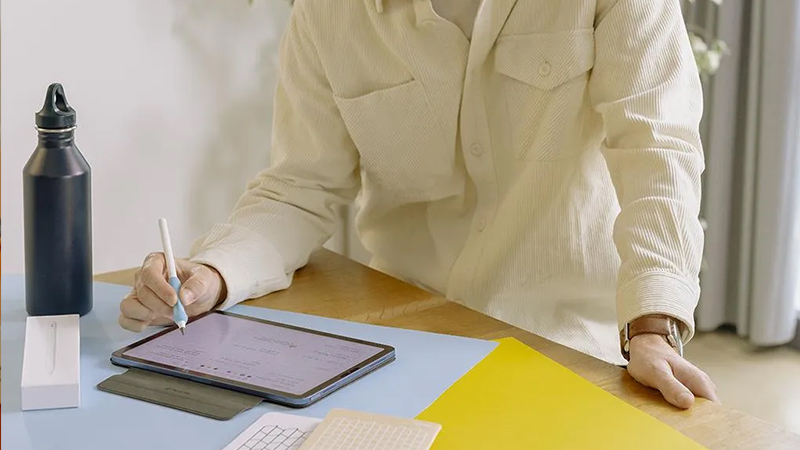
In Apple Notes, you can create folders and subfolders, while apps like Goodnotes offer digital notebooks with their own covers and pages. Try to keep the structure simple from the start. A few clear categories are often more useful than an advanced system with lots of subfolders.
Give each note a clear name
A note called Meeting may be easy to understand on the day it was created. Three months later, it’s much harder to know which meeting it refers to. That’s why it’s wise to use descriptive titles from the start.
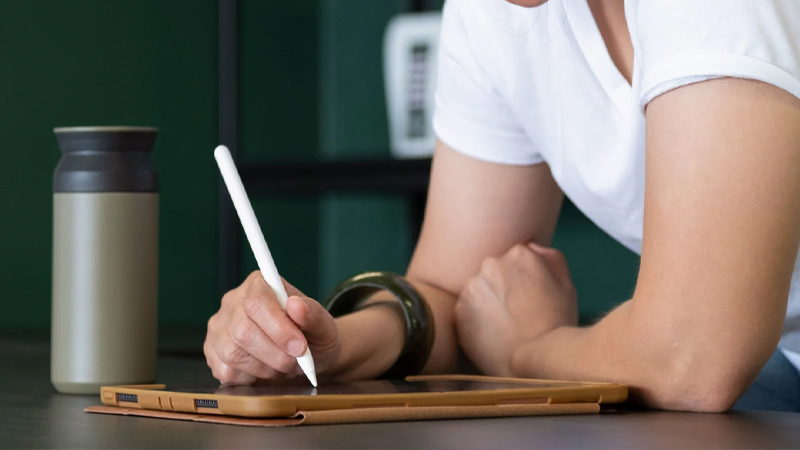
A simple trick is to combine the date with the topic, for example 2026-11-23 Project meeting. That makes notes easier to sort and find again. It can also be practical to use the same naming format for recurring meetings, courses, or projects. You don’t need to create a complicated system, just stay consistent.
Combine handwriting with digital features
Many people prefer to write by hand because it feels natural and makes it easy to draw arrows, show connections, and sketch out ideas. With Apple Pencil, you can keep that freedom while storing your notes digitally.
Several note-taking apps support handwriting recognition and searching handwritten text. That means you don’t always have to remember which page a certain task was written on. You can also combine handwritten comments with images, documents, and typed text. Which features are available depends on the app you use.
Create a routine for reviewing your notes
It doesn’t matter much how neatly your notes are organized if you never go back to them. So set aside a few minutes each week to review what you’ve written and see what is still relevant.
Move finished projects to an archive, gather tasks that need to be done, and clear out anything that’s no longer needed. You can also mark important notes as favorites or pin them to the top of the list if the app supports it. That way, your notes become an active tool instead of a digital storage box.
Make writing more comfortable
When you use your iPad for longer notes, the writing experience itself matters more. Apple Pencil glides easily across the standard glass screen, which doesn’t suit everyone who is used to paper and pen.
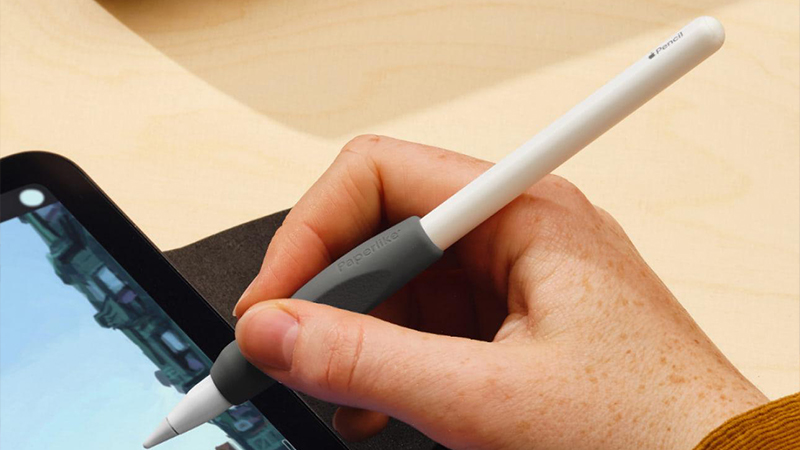
Paperlike 3 is a matte screen protector with a special Nanodots surface that gives the pencil more resistance. It can make handwriting easier to control and create a feeling that is closer to a regular notebook. For anyone who writes a lot, a Pencil Grip can also provide a more comfortable hold. Together with a well-thought-out structure, it becomes easier to use your iPad as a digital notebook in everyday life.
FAQ
Which app is best for organizing notes on iPad?
Apple Notes is a good option for simpler needs. Goodnotes and Notability offer more features for digital notebooks and handwritten notes.
Can you search handwritten notes?
Yes. Several apps can recognize handwritten text and make it searchable. The features vary between different apps and languages.
How do I organize my notes best?
Start with a few folders, use clear headings, and build a habit of reviewing the material regularly.
Do I need Apple Pencil to take notes on iPad?
No. You can write with the on-screen keyboard or an external keyboard. Apple Pencil is especially useful if you prefer handwriting, sketches, and annotations.
What difference does Paperlike make when I take notes?
Paperlike gives the screen a more matte surface with more friction against Apple Pencil. That can provide better control and a writing feel that is closer to paper.