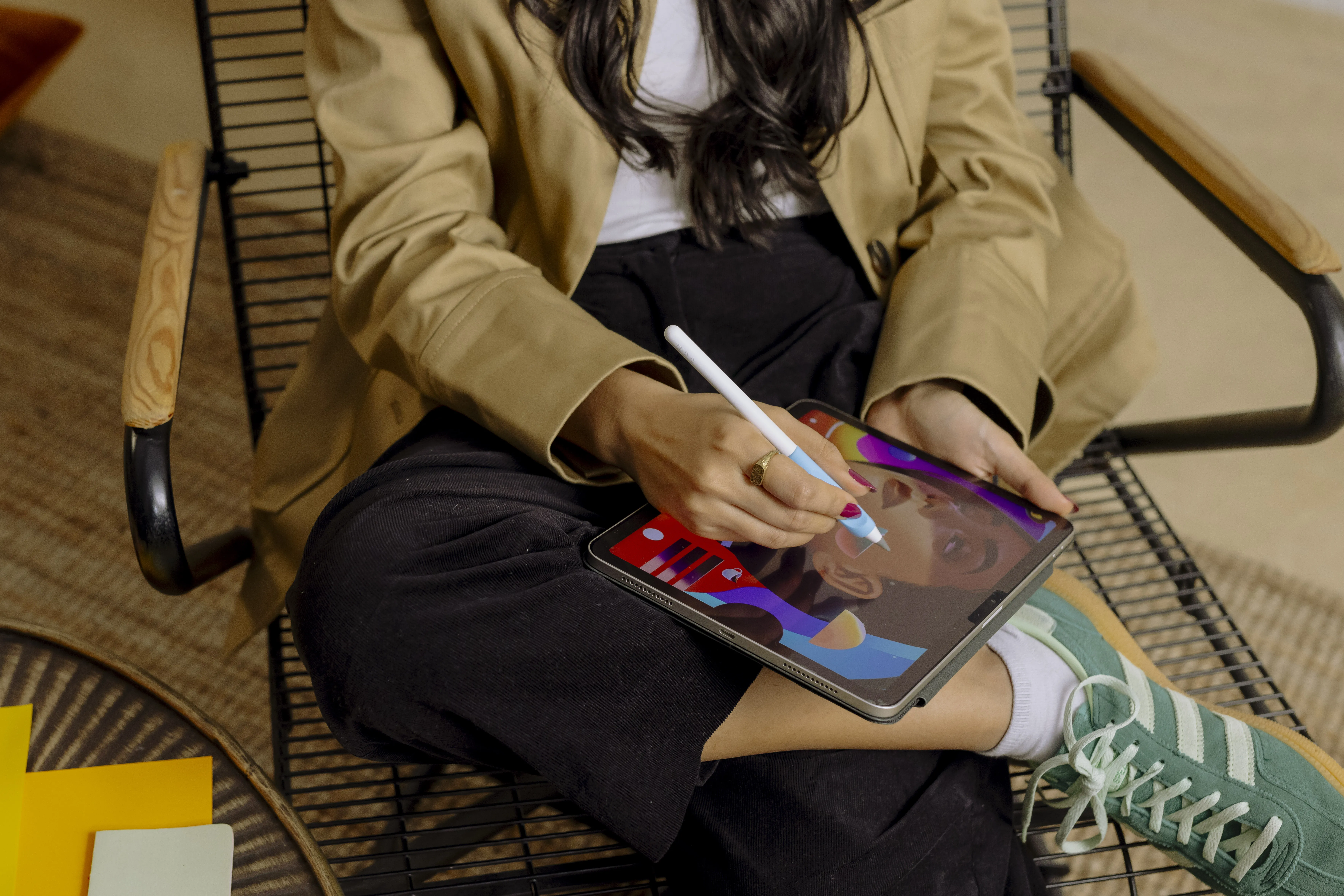




Digital drawing on an iPad has become more than an alternative to paper – it is now a powerful tool for both hobbyists and professional artists. But with so many apps available, choosing the right one matters. It is not just about brushes and colors, but also about precision, workflow, export options, and how the app works with Apple Pencil. Here, we guide you through some of the most capable drawing apps for iPad and how they differ – both technically and in practice.
Procreate – the favorite for many artists
Procreate is perhaps the most talked-about drawing app for iPad, and for good reason. It offers a powerful drawing interface with more than 100 brushes, layer support, time-lapse recording, and advanced features such as QuickMenu, customizable gestures, and real-time brush size adjustment via the hover feature with Apple Pencil Pro. The ability to import and create your own brushes, as well as export PSD files, makes it a favorite among both freelancers and professional illustrators.
Although Procreate is pixel-based and lacks vector support, it is one of the most complete options for digital painting and animation on iPad.
Adobe Fresco – Photoshop power in a mobile form
Adobe Fresco builds on Photoshop’s long-standing graphics engine and gives users access to more than 150 brushes, including live brushes that simulate watercolor and oil with striking realism. Its biggest strength, however, lies in its integration with other Adobe apps. You can work seamlessly between Illustrator, Photoshop, and Fresco – perfect for Creative Cloud users.
Fresco is an excellent choice for anyone who moves between vector and pixel graphics, thanks to both workflows being supported in the same app.
Linearity Curve – vector illustration with a smooth workflow
For anyone working with logos, icons, and graphic design, Linearity Curve (formerly Vectornator) is an interesting option. With support for Pen Tool, Node Tool, and smart layer handling on artboards, it is one of the most accessible vector apps on the market. Thousands of templates, icons, and free images are included, making it easy to get started quickly. The app also includes built-in tutorials and a clear interface that helps beginners get going without feeling overwhelmed.
Curve is especially well suited for anyone working on multi-step design projects and needing to export graphics for web, print, or presentation materials.
Affinity Designer – for professionals in UI and layout
Affinity Designer is a powerhouse that offers both pixel and vector tools through so-called Personas – workspaces where you switch between toolsets. It is also one of the few apps that provides access to advanced typography with OpenType support. It is therefore well suited for both digital painting and UI design, posters, and editorial layout.
That said, it does take some time to master the app’s extensive features – it is not as immediate as Procreate or Sketches, but those who invest the time get one of the market’s most powerful mobile design tools.
Clip Studio Paint – anime, 3D, and comics in one
Clip Studio Paint is tailored for illustrators and comic artists. It stands out for its ability to create comics using ready-made templates for panels, script pages, and speech bubbles. The app also supports animation and 3D models you can draw directly on. That makes it a powerful choice for creators who need a full toolbox in a single app.
Clip Studio is also compatible with both raster and vector graphics, which adds extra flexibility to the creative process.
What should you choose?
Ultimately, it depends on what you want to create. For freeform digital painting, Procreate is a natural choice. Adobe Fresco suits those who work in Adobe’s ecosystem and want realistic color flow. Clip Studio Paint is a good fit if you create stories, animation, or manga. Need to create logos, vector shapes, or print-ready artwork? Then Linearity Curve or Affinity Designer is probably the better choice.
Whatever app you choose, the overall experience is noticeably enhanced with the right accessories. A screen protector that adds a paper-like feel or an ergonomic pen grip can make the difference between frustration and flow.
FAQ
Which app is best for beginners in digital art?
Procreate is easy to get started with thanks to its intuitive interface and large community of guides.
What is the difference between pixel and vector graphics?
Pixel graphics are built from points and work well for painting, while vector graphics are based on mathematical shapes and are better for scalable design.
Which app works best for comic artists?
Clip Studio Paint has tools for panels, scripts, and support for 3D models that make it ideal for comic production.
Can I use several drawing apps at the same time?
Yes, many creators switch between apps depending on the project. PSD export and Apple Pencil support make this easy.